
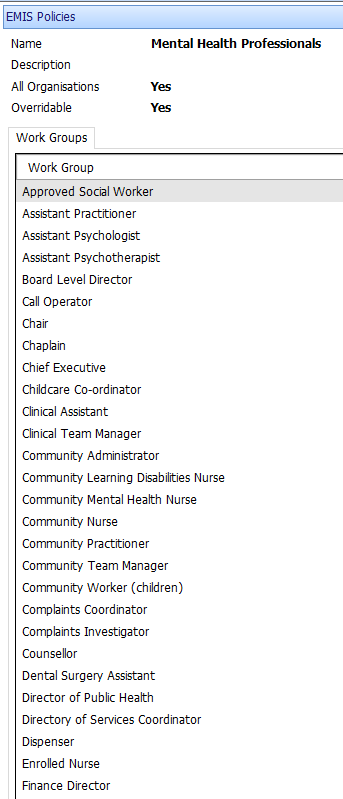
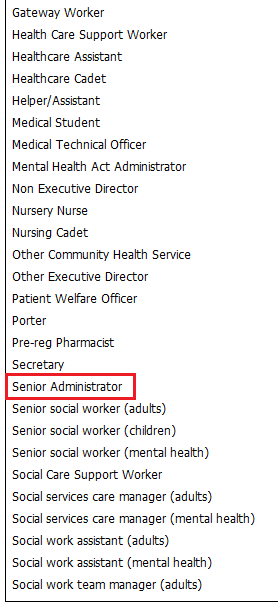
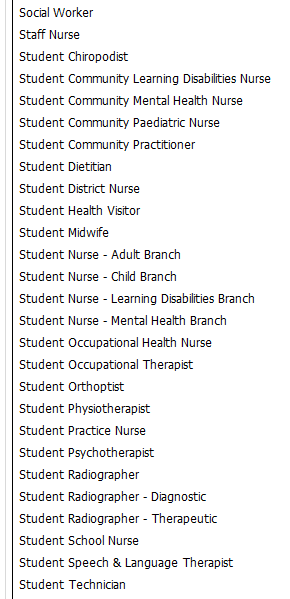
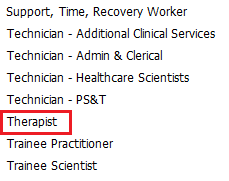
Any EMIS Job Role that is included in the Mental Health Professionals Policy will be able to access a record that has this policy applied to it. The list is quite large:
|
|
|
|
The Job Roles within a Confidentiality Policy can not be amended
The recomended approach is to use the 2 following roles:
- Therapists - Register Patients, Apply Confidentiality Policy and complete consultations
- Senior Administrator - Register Patients, Apply Confidentiality Policy, Send Discharge Summaries
Apply these Job Categories to the EMIS Users Role:


Suitable Job category Roles for EMIS Users who do not belong to the Mental Health Professionals Policy are (to perform other functions):
- General Medical Practitioner
- Receptionist
- Practice Manager
Register Patient and Apply Confidentiality Policy
User must have a Job Role above.
Complete a Patient Trace (wand in the quick access toolbar at the top). No Patient will be found if it's a new patient:
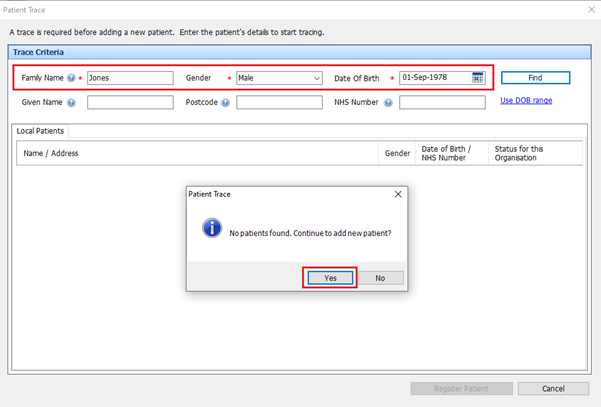
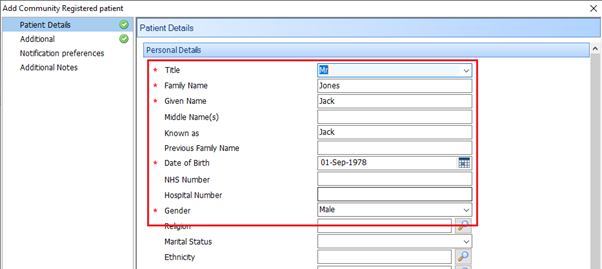
Click Yes to add a New patient. Complete Patient Details:
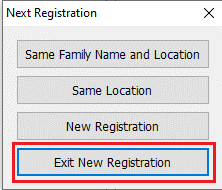
Exit Registration:
To apply the Mental Health Professionals Confidentiality Policy, Find the patient and then go to Registration > Registration:
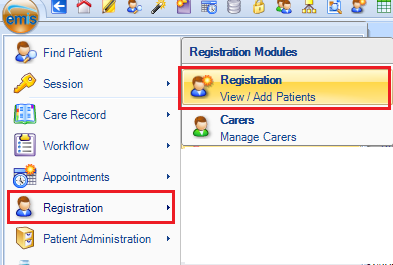
The user will already be in the Registration area if they have just registered a new patient
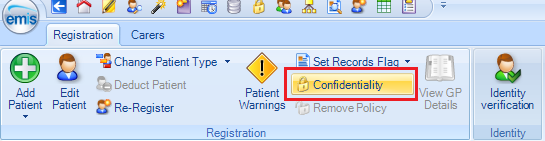
On the ribbon click on the Confidentiality button:
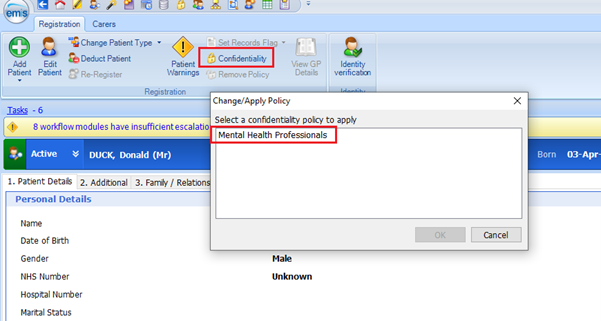
Select Mental Health Professionals
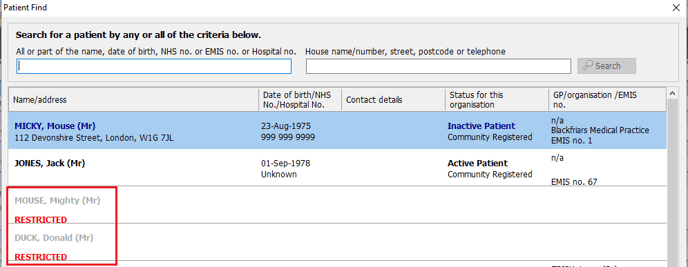
Restricted Patients
Patinets with the Confidentiality Policy applied will show as Restricted when any user who does not have a Job Role that belongs to Mental Health Professionals does a Patient Find:
Double clicking on a Restricted Patient will bring up the Override confidentiality policy warning:
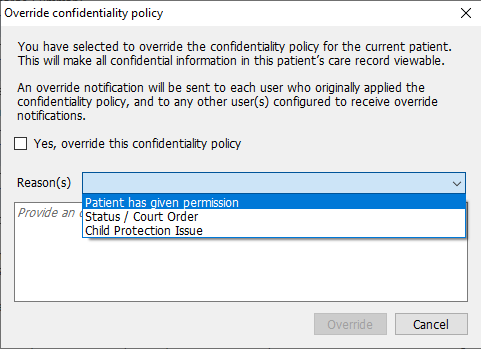
This action will be recorded and the person overriding the policy can be identfied in the Audit Reports